Latest Updates
Update 57
Released on 30th of October 2025.
In this update we made it possible to use the app on multiple businesses at no extra cost to you. This feature will be more appealing to those who use private cloud and have more than one business or those with multiple businesses on the same premises that can be managed by the same computer.
Before installing this update, you need to note the location of your data files. Normally they will be in a folder named “Data Folder” placed somewhere within your computer. You can confirm the location by selecting “Welcome” page on the main menu as shown below:
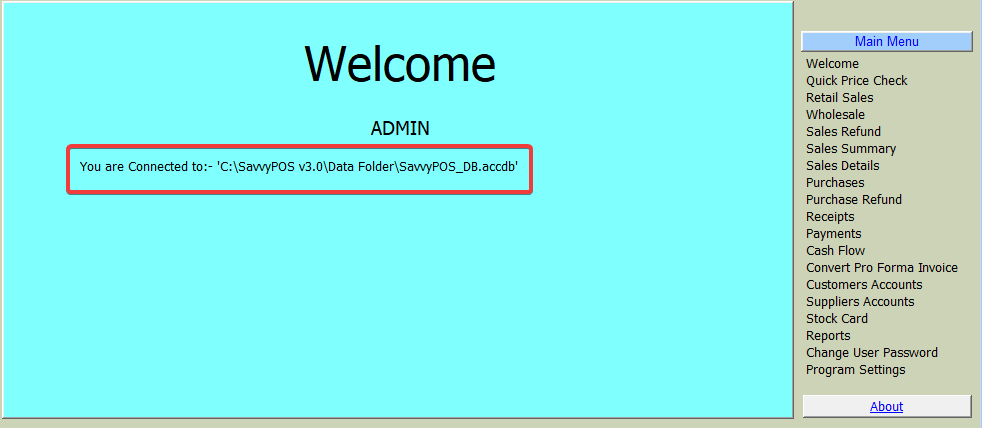
In our example, the “Data Folder” is inside “C:\SavvyPOS v3.0” folder.
After installing this update, the program will launch displaying business list page of which it will be empty as shown below:
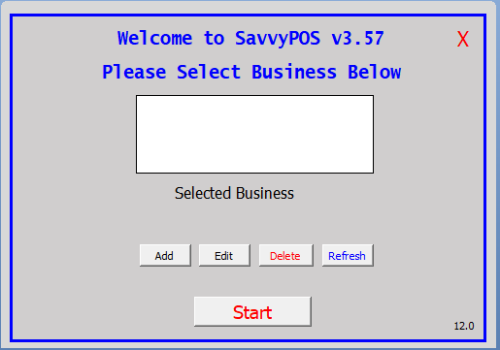
For existing customers, click “Add” button shown above. This will open another window shown below:

On the “Serial” box, enter “1” (without quotes). On the Business Name box, enter your business name and leave “Location of Data Folder” blank.
Although you are not creating a new business, you also need to tell your app where your data folder is located. Just click “Save” button to close and click “Refresh” button on the first window which is still open. Our example Business name we entered is: ABC Trading Ltd as shown below:

Now select your business and click “Edit” button to open edit window shown below:
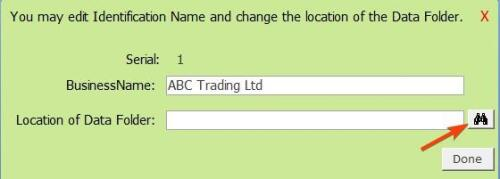
Click “Binoculars” button and navigate to “C:\SavvyPOS v3.0” folder. That is the location of your “Data Folder” that was on your Welcome Page. And will look like this:
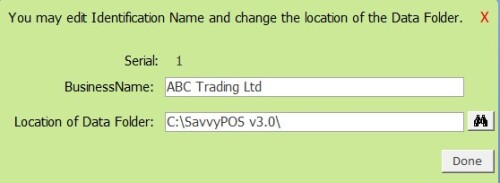
Click “Done” button to finalize. That window will close. Also close the welcome window.
Now restart your app, select your business and click “Start” button.
To add another existing business, repeat the process above. The next business will be serial 2.
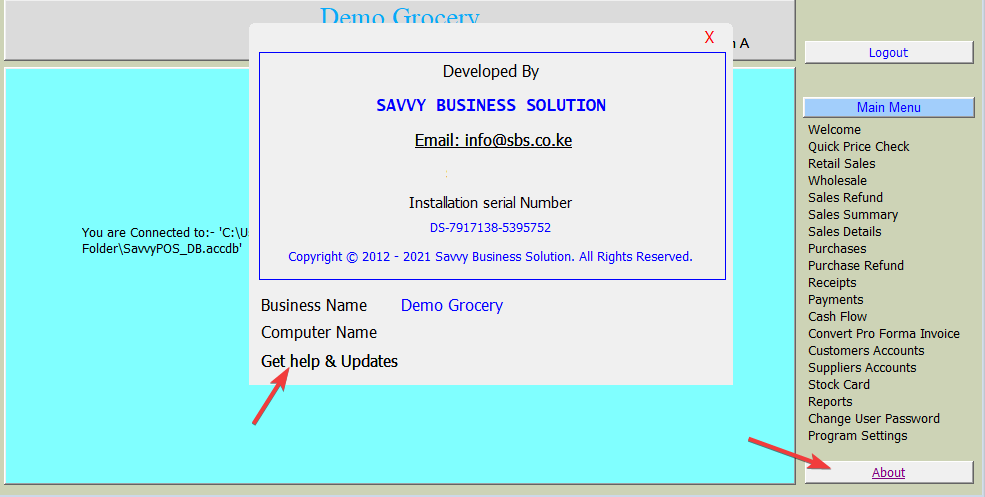
To update, simply start your app and click “About” button (located at the bottom right corner of your App).
Another window will pop up. Click "Get Help & Updates" icon while connected to the internet as shown below.
An update page containing download links appropriate to your edition will open.